
How To Secure Your Google Account? | Techy Eagles
1
Pro Techniques To Secure Your Google Account
 |
| Secure Your Google Account |
In the present era of technology and digitalization, online security is the biggest necessity. All personal details, business secrets, banking, Conversations, and other sensitive information is linked with our accounts.
Google Account is an account that is connected to all of your online accounts such as social media handles and website accounts. By protecting your Google Account you can make your online presence and activities more safe and secure.Because approximately 90% public is using Google for online work.
It is the most convenient aspect of Google Account that you can sign in to many Apps and websites directly with Google Account by reminding only one password of Google Account but at the same time, it risks because you are given access to your Google Account. Some applications and websites are trustworthy and some are not so let's find out How to Secure Your Gmail Account.
Creating a Google account is an easy process but security is a little bit technical.
So in this article, I will make you aware of "How to secure your Google Account?" You can add multiple layers of security to make your Google Account more secure.
7 WAYS TO SECURE YOUR GMAIL ACCOUNT FROM HACKERS
1. USE A STRONG, UNIQUE PASSWORD
 |
| Make strong and unique password |
Passwords are bodyguards for all of your sensitive data available online. A weak password can make it easy to hack your Google Account on the other side a strong and unique password can protect you from hacking attacks. But there are some questions.
HOW TO CREATE A STRONG PASSWORD?
For creating a strong password you must know that what is a strong password. Set a strong password as a password consisting of more than 8 characters consisting of numbers capital and small letters symbols and special characters. But if you are lazy to create a strong password you can use Google password generator for creating a strong and unique password.
HOW TO REMEMBER STRONG PASSWORDS FOR EACH ACCOUNT?
Remembering difficult answer wrong password for each of your accounts is a very difficult and mind painting problem. That is a solution for this I am suggesting you a password manager which will provide you more security and it will remember your strong password and it will help you by auto-filling your password when you are logging in to your accounts.
2. DO A SECURITY CHECKUP
 |
| Do a security check of Google Account |
You can make your Google account more secure by doing a security checkup.
Add a recovery email and recovery phone number for logging in to your account safely. If someone else will try to access ess your Google account you will receive an alert email from Google. So pay attention to this email and block other people to access your Google account.
3 SET UP 2-FACTOR AUTHENTICATION/ PHYSICAL SECURITY KEY
 |
| Set-up 2 factor authentication |
Two factors authentication the best way is to secure your accounts online. This is a system that will heat to protect your Google account by notifying you through a message or notification prompt to accept signing in at the tempting.
The two-factor authentication process works differently for different applications and services. In some cases, you will rec, live an OTP on your email or SMS but the other side, Google will send you a notification prompt where you have to click on "Yes" if you are trying to log in to your Google Account but if someone else such as a hacker is trying to access you can click on "it's not me" to block those hackers.
PHYSICAL SECURITY KEY
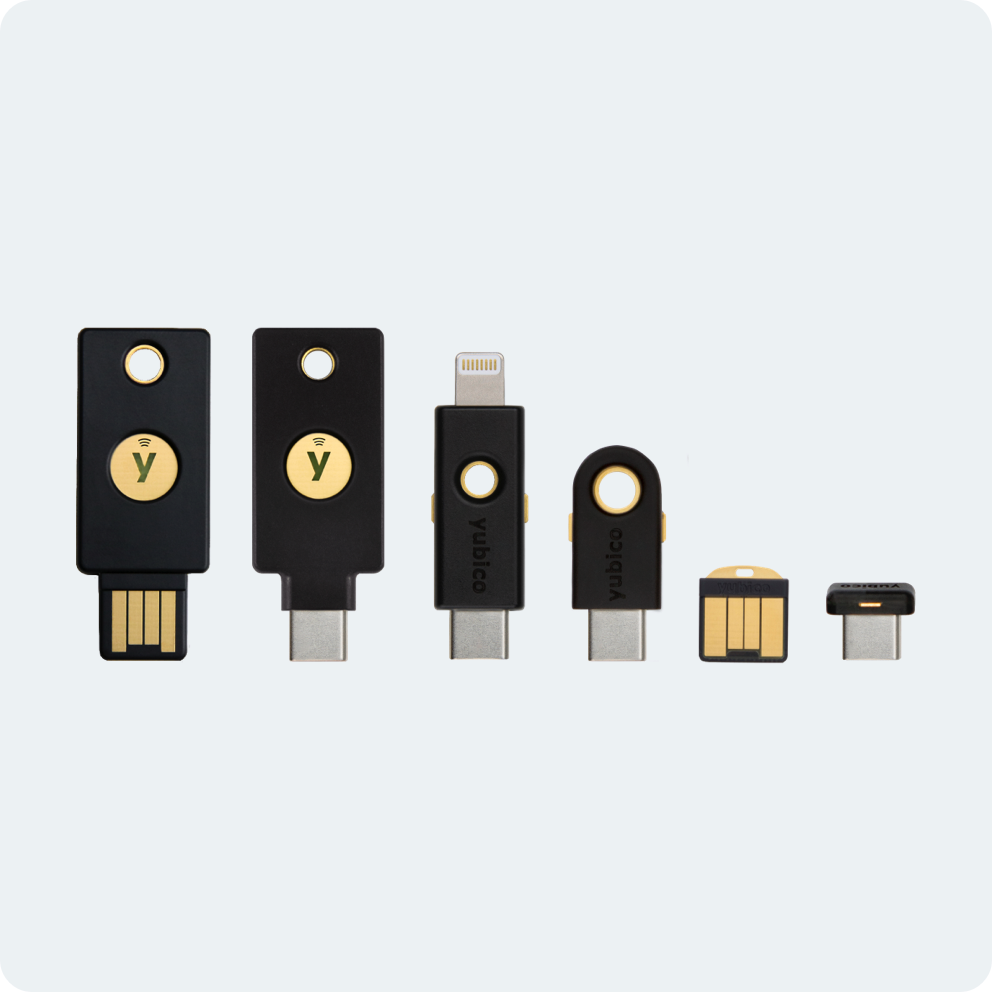 |
| Physical security key |
is a technique that will make your accounts more secure online. It will be connected to your accounts and only with this key one can access the Google Account. But it is more secure to use a password manager with a google security Key to making the account unbreakable.
How to do that is explained below;
HOW TO ENABLE TWO-FACTOR AUTHENTICATION ON. GOOGLE ACCOUNT?
For enabling 2-factor authentication on your Google Account follow these steps
1. Open your Google Account by clicking on manage Google Account under your Account
2. In the board select Security.
3. Under “Signing in to Google,” select 2-Step Verification and then Get started.
3. Follow the on-screen steps to enable 2 factor authentication.
 |
| Click on 2-step verification |

Click on Get Started
HOW TO ADD A PHYSICAL SECURITY KEY TO GOOGLE ACCOUNT?
Click on Manage Google Account and then open the security tab and go to the 2-factor authentication tab and click on add physical key. You will have to enter your account password, then when prompted, it will be asked to attach the key. Tap the key itself to confirm the connection, and you’re done. You can also give me your key.
The next time you’re signing in on a new device you have to apply the physical key to access it.
4 UPDATE YOUR SOFTWARE
 |
| Update your software |
If you are using outdated versions of applications and operating systems on your device will become vulnerable to hacker attacks. Keep your operating system, software and Application updated to make your Google Account more secure. Always use the latest versions.
5 PROTECT AGAINST SUSPICIOUS MESSAGES & CONTENT
 |
| Don't click on suspicious links |
Never give your password to Facebook, Instagram, or any other legit Application or web will never your password and other details in an email, message, or phone call.
Don’t pay any attention to suspicious emails, messages, webpages, or phone calls that ask for your personal information such as username, password, Identity Card number, phone number, credit card number, etc.
Don’t open any link in emails, messages, webpages, or pop-ups from untrusted sources or senders.
But if you want to check it out open it on a PC or a Laptop. Hover your cursor on the link without clicking to see the link to check to which it will direct you.
6. REMOVE APPS & BROWSER EXTENSIONS YOU DON'T NEED
 |
| Remove extra extensions and software |
Now many apps and websites allow you to make an account using your Google credentials. Although this makes the logins more simple and easy but it’s always important to find Which permissions are you providing to those third-party apps by logging in with your Google or Gmail account?
To see which third-party applications are connected to your Google account, go to myaccount.google.com/security and scroll down to find the “Third-party apps with account access” section. From where you can manage permissions and revoke access to each app individually.
More the number of applications, software, and extensions on software More vulnerability for your device. Install only those apps and browser extensions on your devices that you need and have no access to your sensitive information. Avoid installing extensions, software, and application from untrusted websites. Always use Google Play Store, App Store, and Google Extensions, and the official store of Microsoft.
If you have installed some of these already immediately Delete or disable apps on Android devices, Uninstall extensions on Chrome, Uninstall apps or extensions on Chromebooks.
7. USE A PASSWORD MANAGER
 |
| Use Password Manager |
Creating a strong password for each of your accounts and remembering them is full of hassles process. So instead of creating and remembering difficult passwords use Dashlane’s Password Generator to create a password for you.
Also use Dash Lane password manager it will secure Your password and autofill for you on all devices such as Mobile, PC, and table. Password Generator will appear when you have to make an account on a new website or app. You can generate specific passwords for specific sites. You have to remember a Master password for Dash Lane Password Manager and once you logged in to password manager your accounts information will be auto-filled with your credenza to-filled will make your online life hassle-free.
